

Quick Answer
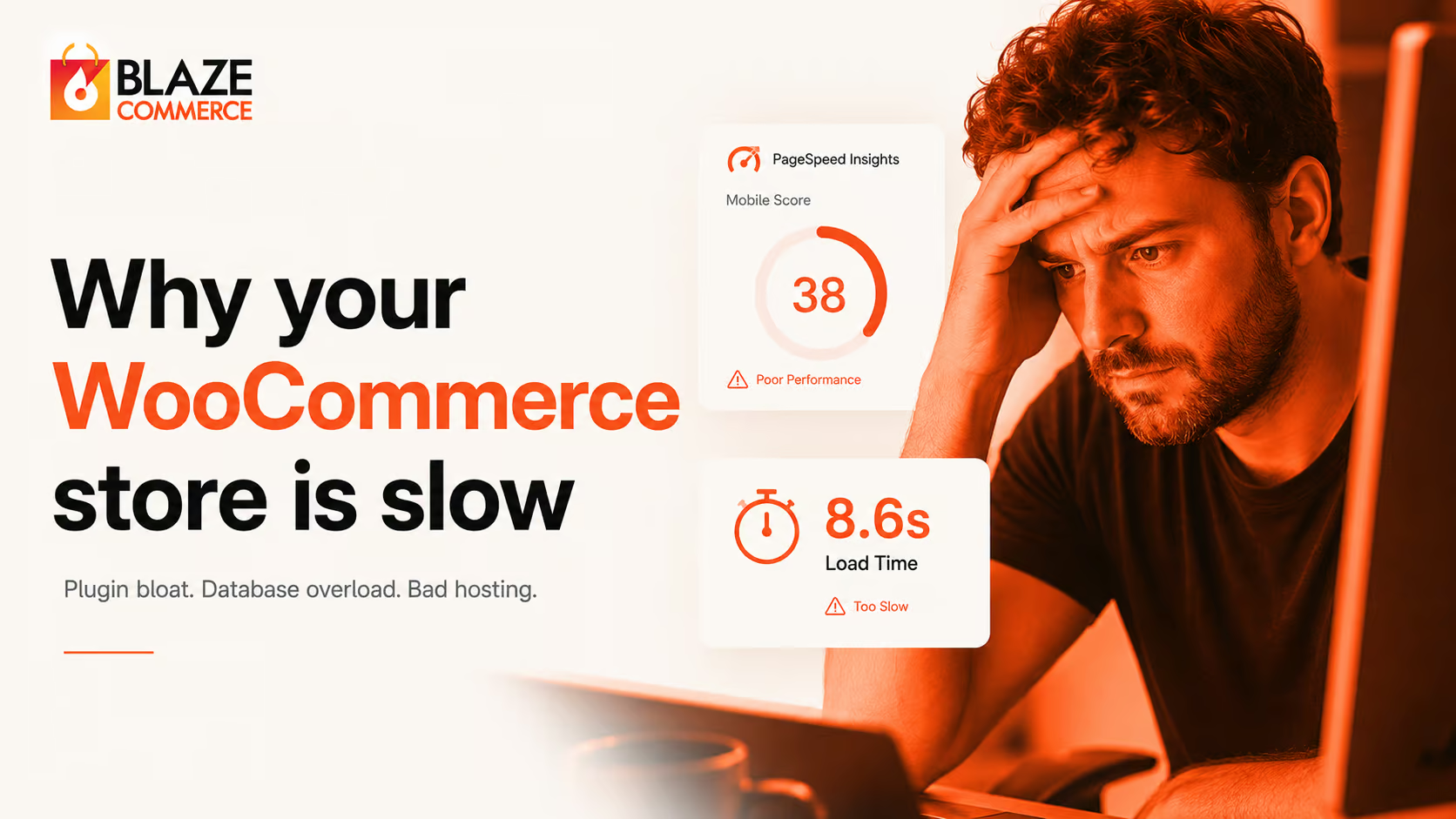
Your WooCommerce store is slow because of plugin bloat, unoptimized databases, inadequate hosting, and the way WordPress builds every page on demand. The average WooCommerce store loads in 8.6 seconds – based on our analysis of thousands of stores over the past decade. We’ve transformed hundreds of those stores to load in under 1 second.
Bottom line: Most WooCommerce performance problems come from four sources: database inefficiency, plugin conflicts, theme bloat, and hosting limitations. Address these systematically and you’ll see 70-90% improvement in load times.
This guide shows you exactly how to diagnose your specific performance problems and resolve them – the same methodology we use with clients who’ve seen results like 87% faster load times and 14.5% higher profitability.
A note before we start: We work with all kinds of WooCommerce store owners. Some are hands-on technical founders who want to understand every detail. Others want their store to work and prefer to leave the complexity to experts. Both are valid.
If this guide starts to feel like a lot, that is the point – this is complex, which is why we have spent 10 years on it. Skip to the bottom for how we help, or keep reading to understand what is happening under the hood.
Why WooCommerce Is Slower Than Other Platforms
WooCommerce powers over 25% of all ecommerce stores. It’s flexible, customizable, and built on WordPress – which is both its greatest strength and its biggest performance liability.
Here’s the problem: WordPress was designed as a blogging platform in 2003. WooCommerce was bolted on top in 2011. The architecture wasn’t built for ecommerce at scale.
What that means in practice:
WordPress runs your frontend, backend, database, and every plugin you’ve installed as a single connected system. When a customer loads your product page, WordPress has to:
- Process PHP to generate the page
- Query the database (often 200+ queries per page load)
- Load every active plugin’s code
- Render your theme’s CSS and JavaScript
- Fetch images and external resources
Each step adds milliseconds. Those milliseconds compound.
The plugin problem is worse than you think.
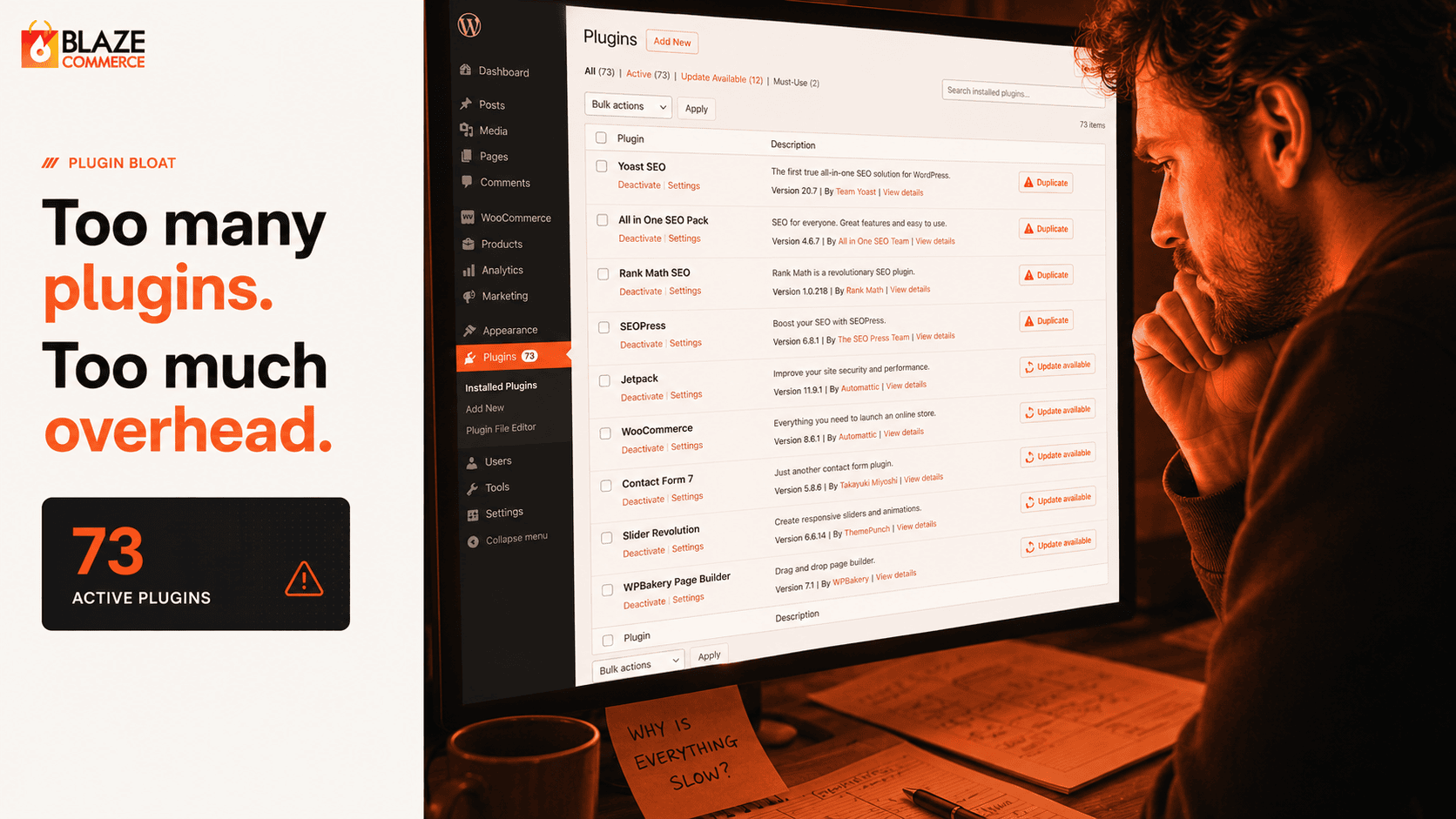
The typical WooCommerce store we audit has between 30 and 100+ active plugins. Most sit around 50. Each plugin adds processing time, database queries, and often its own JavaScript and CSS files that load on every page – whether needed or not.
We recently audited a store running 73 plugins. Twelve of them were deactivated plugins from previous developers that were still partially loading assets. Another eight were redundant – multiple SEO plugins, multiple security plugins, three different analytics solutions.
This isn’t unusual. It’s the norm.
The database grows without limits.
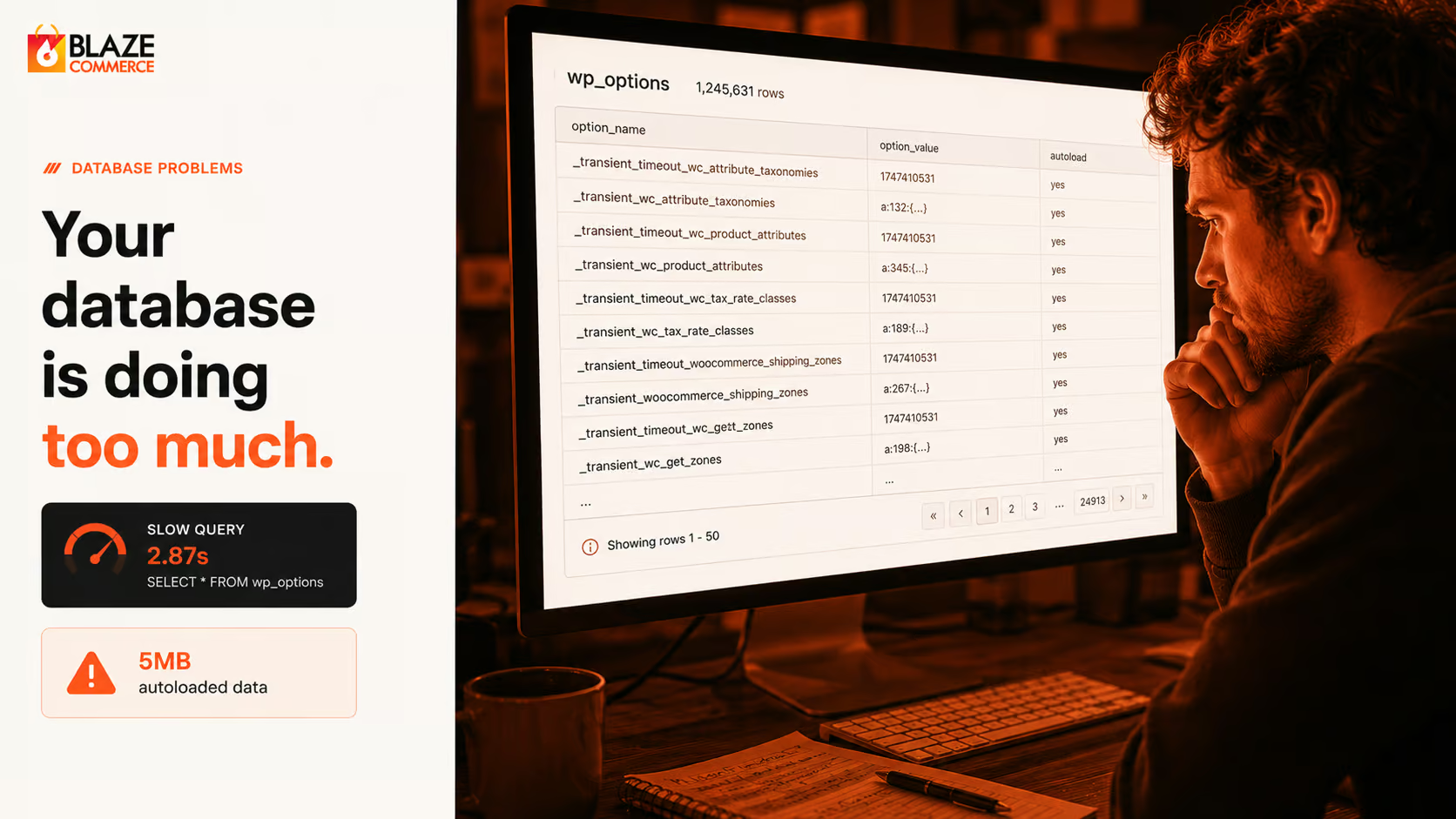
WooCommerce databases accumulate data that never gets cleaned up:
- Transients (temporary cached data) that expire but aren’t deleted
- Post revisions for every product edit you’ve ever made
- Abandoned cart data from plugins that store indefinitely
- Log tables from shipping, payment, and inventory plugins
- The wp_options table loading megabytes of autoloaded data on every single page request
That last one – the options table – is particularly damaging. Every plugin stores settings there. Many set their data to “autoload,” meaning it loads on every page whether it’s needed or not. We regularly see options tables with 5,000+ autoloaded rows containing data from plugins that were deleted years ago.
The result:
| Metric | Unoptimized WooCommerce | Optimized WooCommerce |
|---|---|---|
| Average load time | 8.6 seconds | 0.8-1.5 seconds |
| Database queries per page | 200-400+ | 50-80 |
| Active plugins | 50+ | 20-30 |
| Options table autoload size | 2-10MB+ | Under 500KB |
The good news: every one of these problems is solvable. The rest of this guide shows you how.
We’ll show you exactly where your store loses revenue.
We audit your store across UX, performance, and conversion, then show you the specific issues costing you orders – each one measured against revenue impact. You get a prioritised list of what’s losing money and what it’s worth to resolve.
- ✓239-point Baymard UX audit
- ✓Core Web Vitals + LCP + CLS benchmark
- ✓SemRush health benchmark
Every finding comes with the revenue it’s costing you and the lift from resolving it. You decide what’s worth doing.
Step-by-Step: Diagnosing Why Your WooCommerce Store Is Slow
Before you start disabling plugins and changing hosts, you need to know what’s causing your specific performance problems. Random optimization wastes time and often makes things worse.

Start with PageSpeed Insights (But Understand Its Limits)
Google’s PageSpeed Insights is free and gives you a baseline. But most store owners use it wrong.
How to run a proper test:
- Test in incognito mode (clears cache and cookies)
- Run the test 3 times and average the scores (results vary by 5-10 points between runs)
- Test your key pages, not only the homepage: a product page, a category page, and your cart
- Focus on mobile scores first – 70-80% of your traffic is mobile
What the scores mean:
- 90-100: Good. Your store loads fast.
- 50-89: Needs improvement. You’re losing conversions.
- 0-49: Poor. You’re losing significant revenue.
Most WooCommerce stores we audit score 30-50 on mobile. The stores we optimize typically hit 85-95+.
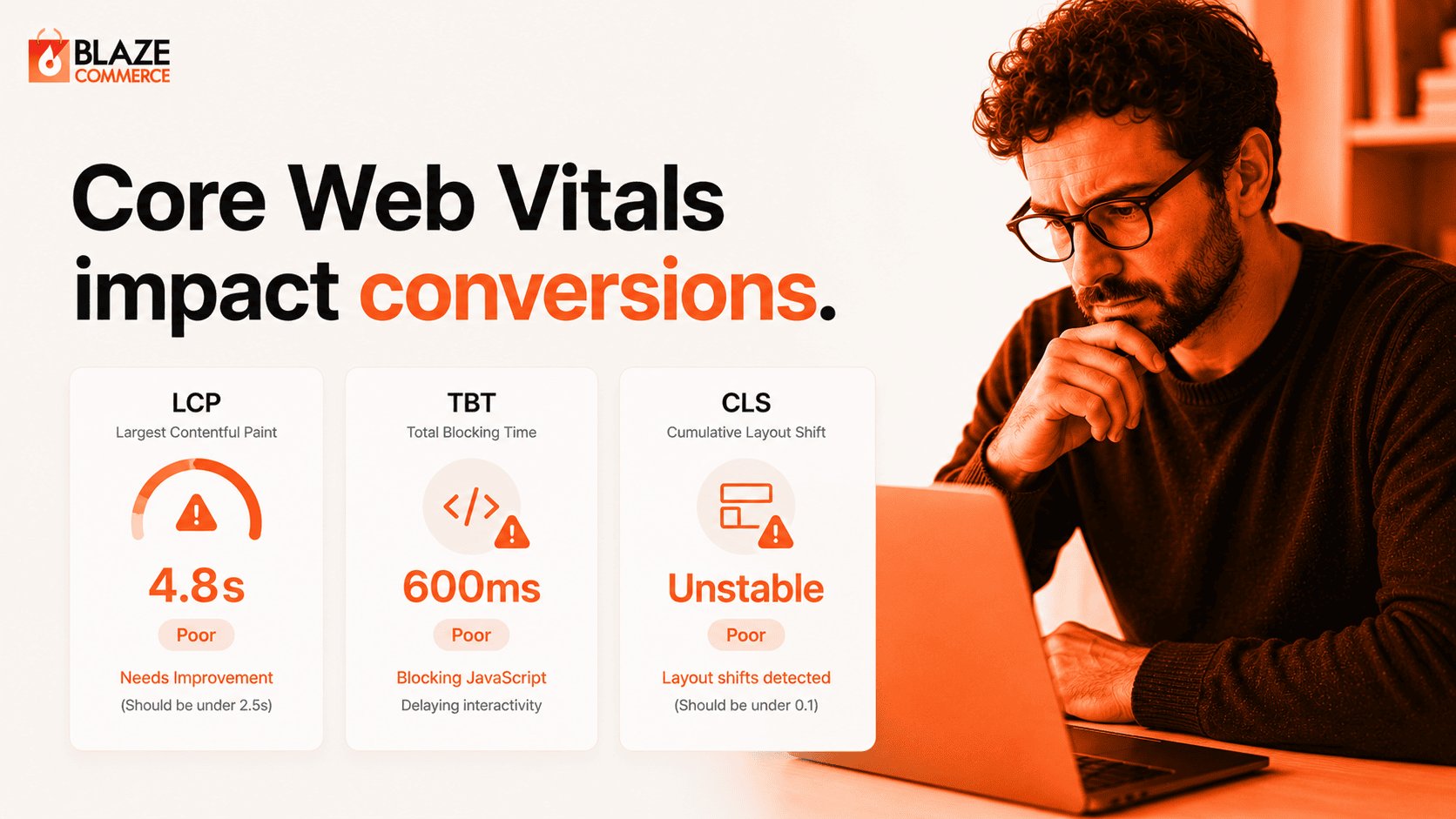
Core Web Vitals matter more than the overall score:
- Largest Contentful Paint (LCP): How long until the main content loads. Target: under 2.5 seconds, ideally under 1.2 seconds.
- Total Blocking Time (TBT): How long the page is unresponsive to user input. Target: under 200ms.
- Cumulative Layout Shift (CLS): How much the page jumps around while loading. Target: under 0.1.
If your LCP is over 4 seconds, that’s your priority. If TBT is over 600ms, you have JavaScript problems. If CLS is over 0.25, your layout is unstable and frustrating users.
Identify Your Biggest Bottleneck
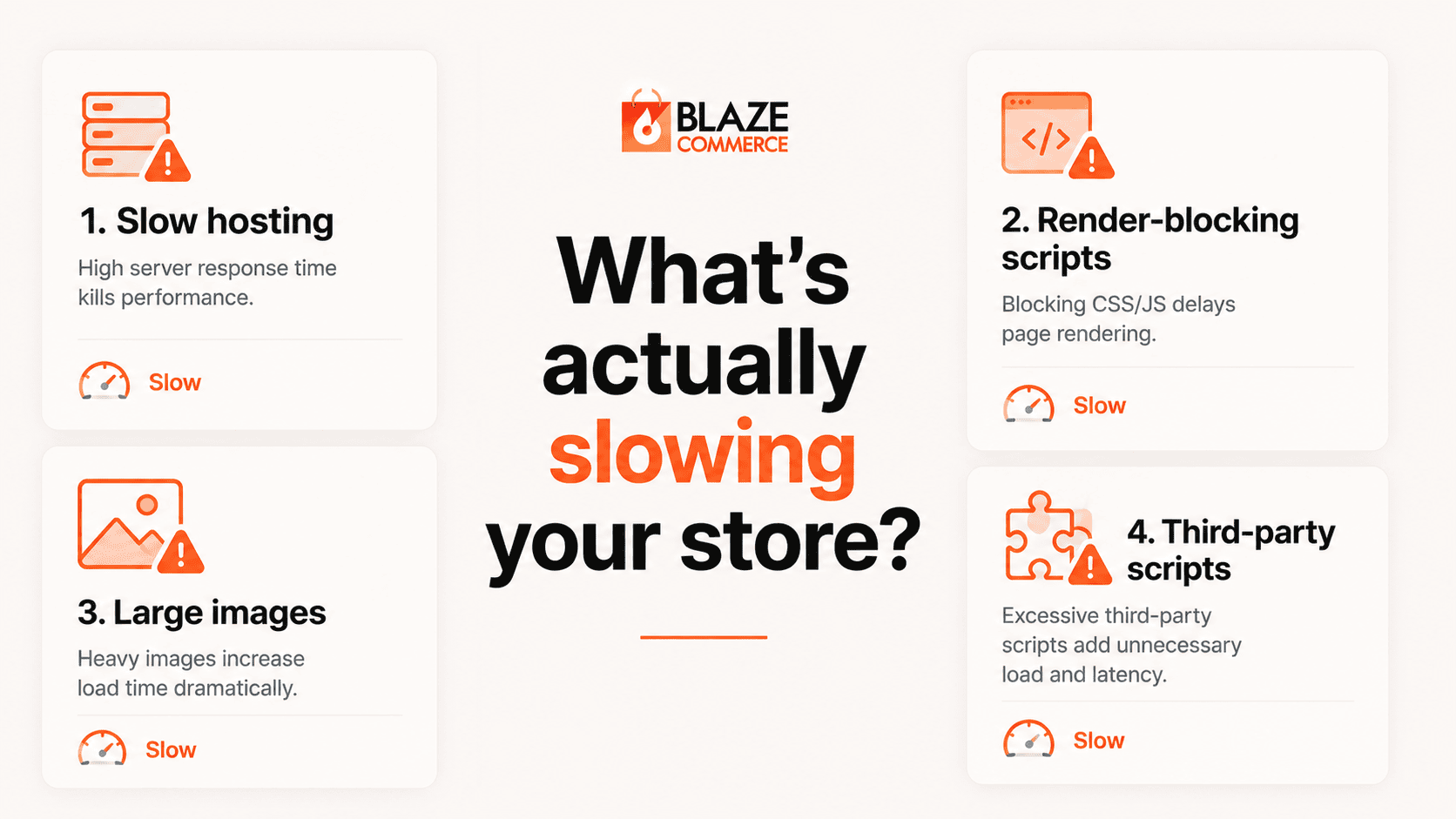
Performance problems fall into four categories. PageSpeed Insights tells you which one is killing your store:
1. Server response time (TTFB over 600ms)
If Time to First Byte is high, the problem is your hosting or database. Your server is taking too long to even start sending the page. No amount of frontend optimization will resolve this.
2. Render-blocking resources
If you see warnings about “eliminate render-blocking resources,” your theme or plugins are loading JavaScript and CSS that blocks the page from displaying. This is usually a theme problem or page builder overhead.
3. Large images
If “properly size images” or “serve images in next-gen formats” appear, your product images aren’t optimized. This is the easiest problem to resolve.
4. Third-party scripts
Analytics, chat widgets, payment gateway scripts, social media embeds – these load from external servers you don’t control. They often add 1-3 seconds to page loads.
The 5-Minute Plugin Audit
Plugins are the most common cause of WooCommerce slowdowns. Here’s how to identify the culprits.
Install Code Profiler:
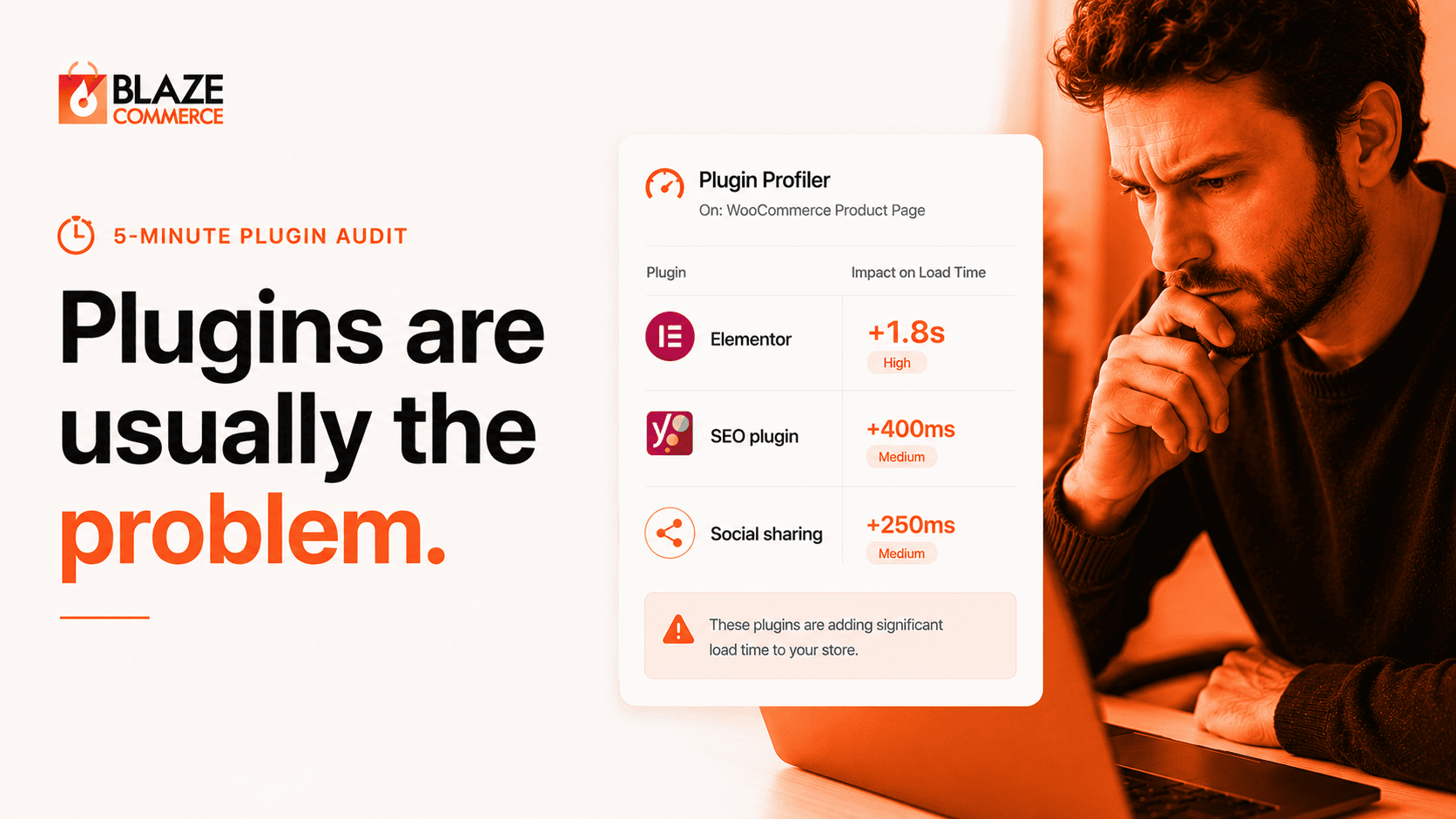
This free plugin shows you exactly how much time each plugin adds to your page loads. Run a scan on a product page – that’s where performance matters most.
What you’ll typically find:
- Page builders (Elementor, Divi, WPBakery) adding 500ms-2 seconds
- Heavy SEO plugins adding 200-500ms
- Abandoned cart plugins running complex queries on every page
- Social sharing plugins loading scripts you don’t need
- Deactivated plugins still partially loading assets
A real example:
We recently worked with a UK dancewear retailer running WP Offload Media – a plugin that moves your images to Amazon S3 or Google Cloud Storage. Sounds like it should improve performance, right?
It was adding 2-3 seconds to every product page load.
The plugin was making external API calls for every image on the page. Removing it and serving images directly from the optimized server dropped their product page load times dramatically.
Common plugin offenders:
| Plugin Type | Typical Impact | Alternative |
|---|---|---|
| Page builders (Elementor, Divi) | 500ms-2s | FSE themes, native blocks |
| Heavy SEO plugins (Yoast with all features enabled) | 200-500ms | The SEO Framework, RankMath (lean config) |
| Abandoned cart plugins | 300-800ms | Evaluate ROI vs. performance cost |
| Social sharing plugins | 100-400ms | Native sharing links or remove entirely |
| Slider plugins | 300-600ms | Static hero images |
See exactly where your store is losing revenue.
You’ve learned how to diagnose performance bottlenecks. The $995 WooCommerce Revenue Audit does it for you with real numbers – a full diagnosis across performance, UX, analytics, and your build, with the specific revenue leaks quantified and a prioritised plan to close them.
- ✓Real data from your store
- ✓Reviewed by people, not bots
- ✓Specific revenue leaks quantified
A paid, full diagnosis tied to real numbers from your store – not generic promises. You see exactly what we would touch before any work begins.
WooCommerce Database Optimization: The Hidden Performance Killer
Your database is probably bloated. Not because you did anything wrong – WooCommerce databases grow out of control by default.
Why WooCommerce Databases Get Slow
Problem 1: Log tables grow indefinitely
Action Scheduler (used by WooCommerce for background processing), shipping plugins, payment gateways, inventory sync tools – they all create log tables. These tables grow with every order, every sync, every background process. We’ve seen action scheduler tables with millions of rows on stores processing a few hundred orders per month.
Problem 2: The options table autoload issue
The wp_options table stores settings for WordPress and every plugin you’ve ever installed. Much of this data is set to “autoload,” meaning WordPress loads it into memory on every single page request.
When you delete a plugin, its options often stay behind. When plugins store temporary data in options instead of transients, that data accumulates forever.
We regularly see options tables where:
- 3,000+ rows are set to autoload
- Total autoload data exceeds 5MB
- Data from plugins deleted years ago is still loading on every page
Every megabyte of autoloaded data adds processing time. On a shared host, this alone can add 1-2 seconds to every page load.
Problem 3: Missing performance indexes
WooCommerce requires specific database indexes to run queries efficiently. The default WordPress indexes aren’t optimized for ecommerce operations – searching products, filtering orders, loading customer data.
Without proper indexes, database queries have to scan entire tables to find information. As your product catalog and order history grow, queries get progressively slower.
How to Optimize Your WooCommerce Database
Step 1: Add high-performance indexes
Install Index WP MySQL for Speed. This plugin:
- Analyzes your database tables
- Converts MyISAM tables to InnoDB (critical for concurrent users)
- Adds performance indexes optimized for WordPress and WooCommerce
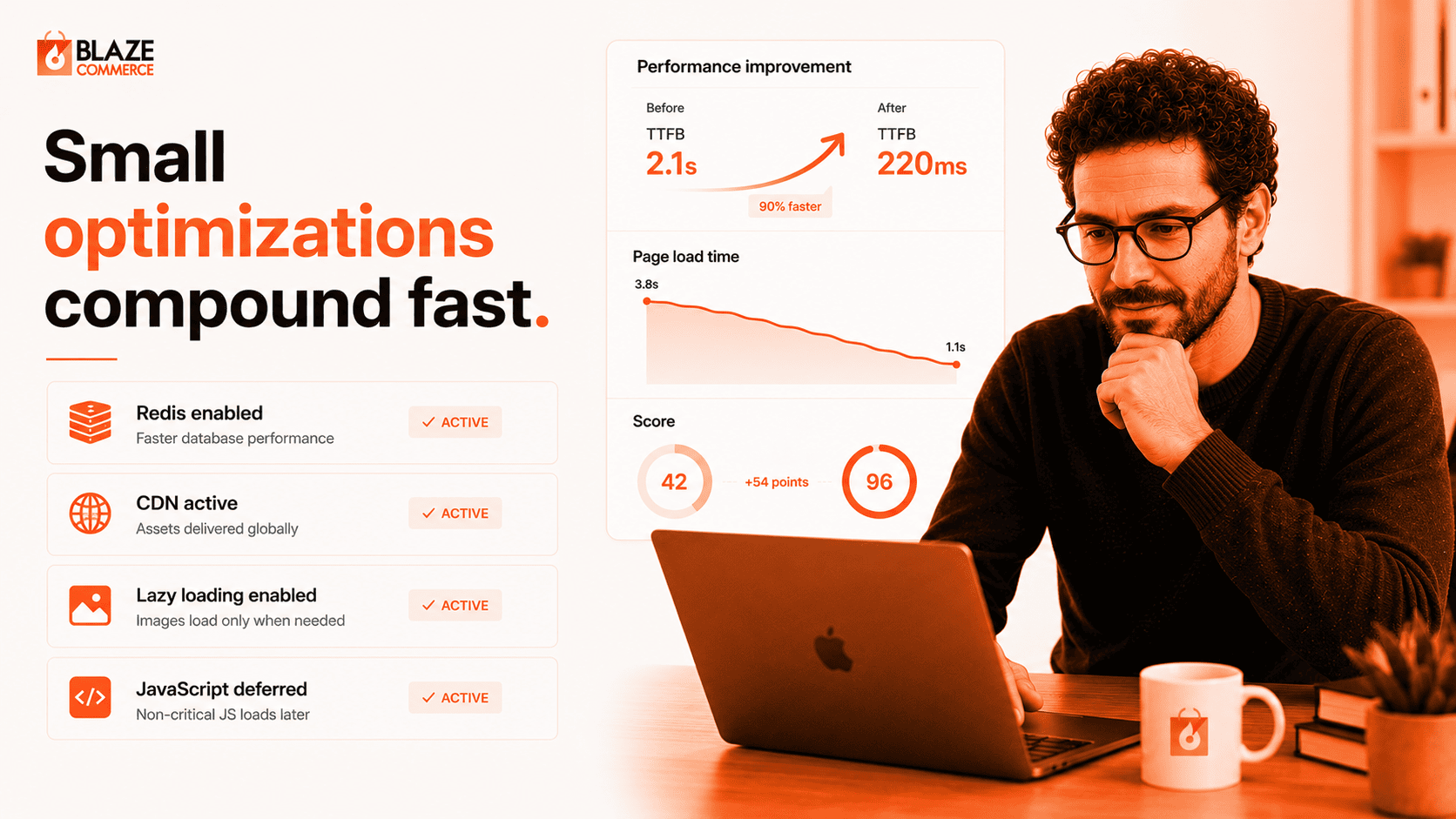
Run the analysis, apply recommended changes. This typically takes 5 minutes and can cut query times by 40-60%.
Step 2: Clean up the options table
Use a tool like WP-Optimize or run manual queries to:
- Delete transients (temporary data that should auto-expire but often doesn’t)
- Remove orphaned options from deleted plugins
- Identify which plugins are autoloading unnecessary data
Step 3: Purge bloated log tables
Check your database for tables from:
- Action Scheduler (wp_actionscheduler_*)
- WooCommerce logs (wp_wc_*)
- Shipping and fulfillment plugins
- Any plugin with “log” in the table name
Most of this data is only useful for debugging. If your store is running normally, you don’t need years of log history. Truncate or set up automatic cleanup.
The impact:
Database optimization alone typically improves Time to First Byte by 30-50%. On poorly maintained stores, we’ve seen improvements of 70%+.
Your WooCommerce Theme Is Probably Slowing You Down
After plugins, themes are the second most common performance killer. And the pattern is predictable: the more features a theme advertises, the slower it runs.
The Page Builder Problem
Elementor, Divi, WPBakery, and similar page builders are popular because they make design easy. They’re also performance disasters.
Page builders work by:
- Loading their own CSS framework (often 200-500KB)
- Loading their JavaScript library (often 300-800KB)
- Generating complex HTML structures with inline styles
- Adding database queries to fetch builder-specific data
This happens on every page, whether you used the builder on that page or not.
Real numbers:
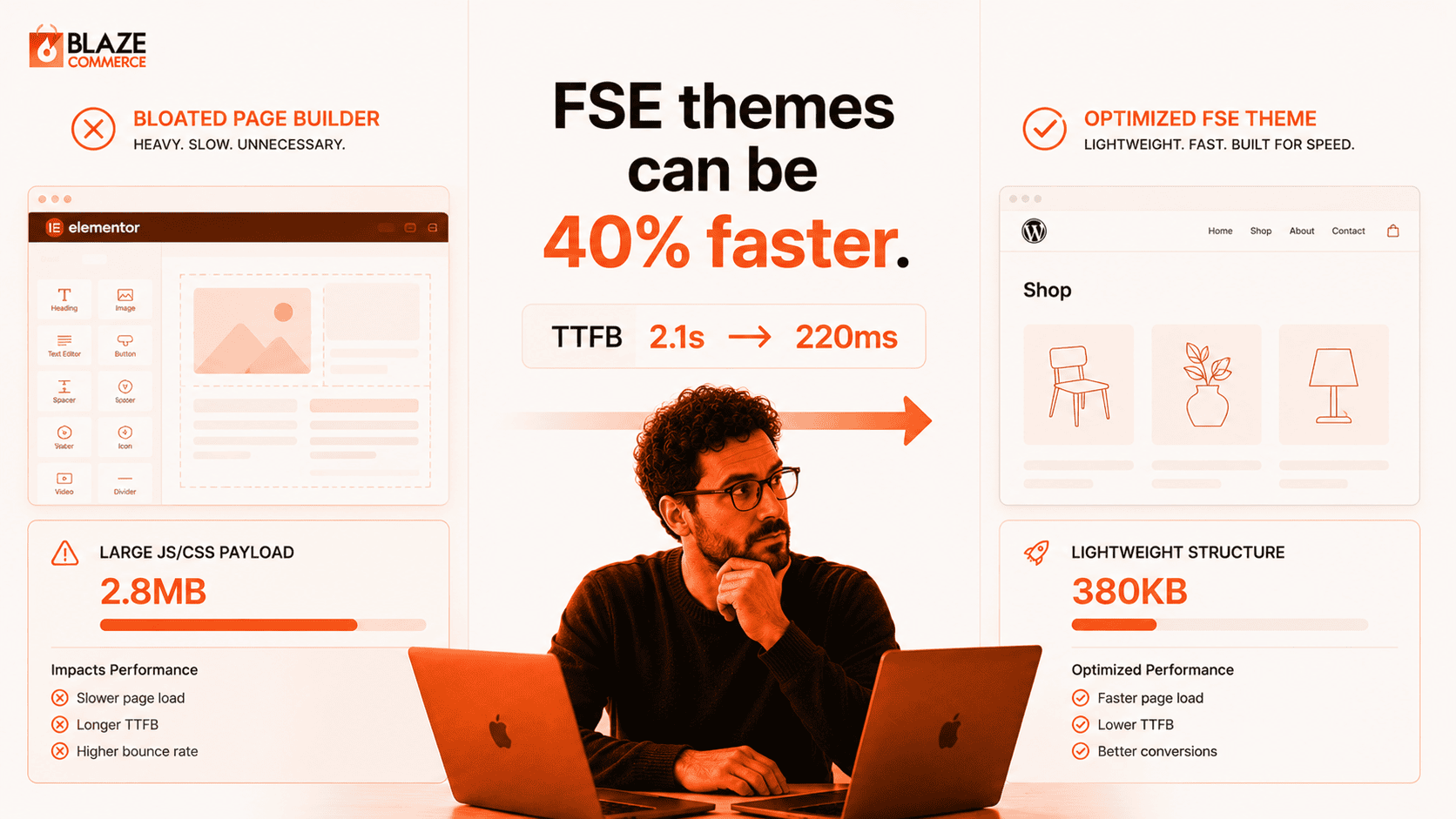
A theme with Elementor typically adds 500ms-2 seconds to page loads compared to the same design built with native WordPress blocks or a lightweight theme.
FSE Themes: 40% Faster Than Traditional Themes
WordPress Full Site Editing (FSE) themes represent a fundamental shift in how themes work. Instead of loading a PHP-based theme with separate template files, FSE themes use native WordPress blocks and generate optimized HTML.
Our testing shows FSE themes are 40% faster than traditional themes for WooCommerce stores – with no loss in design flexibility.
Why FSE is faster:
- No page builder overhead
- Native block rendering is optimized at the WordPress core level
- Smaller CSS and JavaScript footprints
- Better integration with WordPress caching mechanisms
When to consider switching:
If your current theme scores below 50 on mobile PageSpeed and you’ve already optimized plugins and database, the theme is likely your bottleneck. A theme switch can be the fastest path to significant improvement.
If your theme scores 70+ and you’re happy with the design, focus on other optimizations first.
Theme Optimization Without Switching
If switching themes isn’t practical, you can still improve performance:
- Disable unused theme features: Sliders, animations, custom fonts you’re not using
- Remove page builder from pages that don’t need it: Product pages especially
- Use a child theme: Prevents your customizations from being overwritten during updates
- Audit theme JavaScript: Many themes load scripts for features you’ve disabled
Is Your Hosting Killing Your WooCommerce Performance?
You can optimize everything else perfectly, but if your hosting can’t deliver, performance will suffer.
Why Most Hosting Fails WooCommerce
Shared hosting is fundamentally inadequate.
Shared hosts put dozens or hundreds of sites on the same server. When another site gets traffic, your site slows down. When you get traffic, you hit resource limits.
WooCommerce is resource-intensive. It runs complex database queries, processes PHP for every dynamic element, and handles real-time operations like cart updates and checkout. Shared hosting can’t keep up.
“WooCommerce optimized” often means nothing.
Many hosts advertise WooCommerce optimization but only pre-install the plugin. Real WooCommerce optimization requires:
- PHP workers configured for ecommerce workloads
- Database servers optimized for complex queries
- Object caching (Redis or Memcached) configured correctly
- Server-level page caching that understands WooCommerce’s dynamic elements
- Adequate CPU and memory for traffic spikes
How to Test Your Current Hosting
Install WPBenchmark and run a performance test. This measures:
- PHP processing speed
- Database query performance
- Memory availability
- Server response under load
Red flags that indicate hosting problems:
- Time to First Byte (TTFB) consistently over 600ms
- Performance degradation during peak hours
- 502/503 errors during traffic spikes
- Database connection errors in logs
- Server hitting memory limits
Our Hosting Recommendation: Kinsta
We host all client sites on Kinsta and have for years. After testing dozens of hosts across hundreds of client projects, Kinsta consistently delivers the best performance for WooCommerce.
Why Kinsta specifically:
- Server-level caching that understands WooCommerce. Kinsta’s caching excludes cart, checkout, and logged-in user pages automatically – no configuration required.
- This makes page caching plugins unnecessary. We’ve found that adding WP Rocket or similar plugins to Kinsta sites degrades performance. The server-level caching is superior to plugin-based caching.
- Real infrastructure. Built on Google Cloud Platform with isolated container technology. Your site doesn’t share resources with other sites on the server.
- Performance out of the box. PHP workers, Redis object caching, CDN – all configured correctly by default.
What we typically see when migrating clients to Kinsta:
| Metric | Before (Various Hosts) | After (Kinsta) |
|---|---|---|
| TTFB | 800ms-2s | 150-300ms |
| Mobile PageSpeed | 30-50 | 80-95+ |
| Uptime during traffic spikes | Degraded | Stable |
Hosting migration alone won’t resolve plugin bloat or database issues. But if you’ve optimized everything else and still see slow TTFB, hosting is your bottleneck.
We’ll show you exactly where your store loses revenue.
We audit your store across UX, performance, and conversion, then show you the specific issues costing you orders – each one measured against revenue impact. You get a prioritised list of what’s losing money and what it’s worth to resolve.
- ✓239-point Baymard UX audit
- ✓Core Web Vitals + LCP + CLS benchmark
- ✓SemRush health benchmark
Every finding comes with the revenue it’s costing you and the lift from resolving it. You decide what’s worth doing.
Plugin Management and Caching: The Right Stack for WooCommerce
Essential vs. Nice-to-Have Plugins
Every plugin has a performance cost. The question is whether the functionality justifies that cost.
Essential (keep and optimize):
- WooCommerce core
- Payment gateway (one, not three)
- Shipping calculation (if needed)
- SEO plugin (lean configuration)
- Security plugin (lean configuration)
- Backup solution
Evaluate ROI:
- Abandoned cart recovery (often heavy; measure actual recovered revenue)
- Live chat (adds external scripts; measure actual conversion impact)
- Product recommendations (can be heavy; native solutions often sufficient)
- Social proof popups (often annoying AND slow)
Usually unnecessary:
- Multiple SEO plugins
- Multiple security plugins
- Multiple analytics plugins
- Social sharing buttons (native links work fine)
- Slider plugins (static images convert better anyway)
- “Performance” plugins that conflict with proper hosting
The Caching Configuration That Works
Caching is essential but tricky for WooCommerce because so much content is dynamic – carts, user sessions, real-time inventory.
If you’re on Kinsta:
You don’t need a page caching plugin. Kinsta’s server-level caching is superior and already configured for WooCommerce. Adding WP Rocket or similar plugins creates conflicts and often slows things down.
What you do need:
- Object caching (Redis) – Kinsta provides this; enable it
- CDN for static assets – Kinsta CDN or Cloudflare
If you’re on other hosting:
You’ll need a caching plugin. FlyingPress or WP Rocket are solid options. Configure them to:
- Exclude cart, checkout, and my-account pages from page cache
- Enable browser caching for static assets
- Enable GZIP compression
- Lazy load images below the fold
Critical: Test your checkout flow after enabling any caching plugin. Caching + WooCommerce + payment gateways create conflicts that break checkouts silently.
Asset Optimization
Use Perfmatters or Asset CleanUp (free) to:
- Disable scripts and styles that load on pages where they’re not needed
- Remove WordPress defaults you don’t use (emoji scripts, embed scripts)
- Defer non-critical JavaScript
- Preload critical assets
This granular control lets you reduce page weight without removing plugins entirely.
Mobile Performance: Where Most WooCommerce Stores Fail

Here’s the uncomfortable truth: 70-80% of your traffic is on mobile devices, but your mobile conversion rate is probably 50% lower than desktop.
Performance is a major factor. Mobile devices have less processing power, less memory, and often slower network connections. The 8-second page load that’s barely tolerable on desktop is catastrophic on mobile.
Why Mobile Scores Are Always Lower
PageSpeed tests mobile performance by simulating a mid-tier Android phone on a 4G connection. This is realistic – most of your customers aren’t on the latest iPhone with 5G.
On this simulated device:
- JavaScript takes longer to parse and execute
- Images take longer to download and render
- Complex layouts require more processing to render
- Third-party scripts block the main thread more aggressively
The result: a site that scores 85 on desktop might score 45 on mobile. And mobile is what matters.
Mobile-Specific Optimizations
1. Reduce JavaScript execution time
Mobile devices struggle with JavaScript. Every script your theme and plugins load has to be parsed, compiled, and executed on limited hardware.
Focus on:
- Removing unnecessary plugins (biggest impact)
- Deferring non-critical scripts
- Avoiding page builders on mobile-critical pages
2. Optimize images for mobile
Serve appropriately sized images. A 2000px product image that looks great on desktop is overkill for a 400px mobile viewport – but it still downloads at full size unless you implement responsive images.
WooCommerce generates multiple image sizes automatically. Make sure your theme uses them correctly with srcset attributes.
3. Prioritize above-the-fold content
What appears in the first viewport on mobile should load first. Product image, title, price, add-to-cart button – these need to render before anything below the fold.
This often requires theme customization or choosing a theme with mobile-optimized layouts.
Real Mobile Transformations
Austin Natural Mattress: Mobile PageSpeed 28 → 97. AOV up 88%, orders up 250%. Most of their traffic was mobile, and so was most of the revenue they were leaving on the table before the rebuild.
Byron Bay Candles: Complete mobile UX transformation. Load times dropped from 4.8s to 0.6s. Mobile conversions increased 38%.
Truckers Toy Store: After optimizing their mobile experience, conversion rates increased by over 200%.
These aren’t outliers. Mobile performance optimization consistently delivers the highest ROI because that’s where most stores are leaving the most money on the table.
Reviewed by Campbell and team
Founder · 10 years WooCommerce · 100% focus
Read the guide. Now get the numbers.
You’ve made it this far – you’re serious about your store’s performance. The $995 WooCommerce Revenue Audit goes through your store’s specific issues across performance, UX, analytics, and build, then quantifies exactly what each one is costing you and how to resolve it.
Start My Audit →A paid, full diagnosis tied to real numbers from your store. You see exactly where the revenue is leaking – no generic promises.
How to Measure WooCommerce Performance Improvements
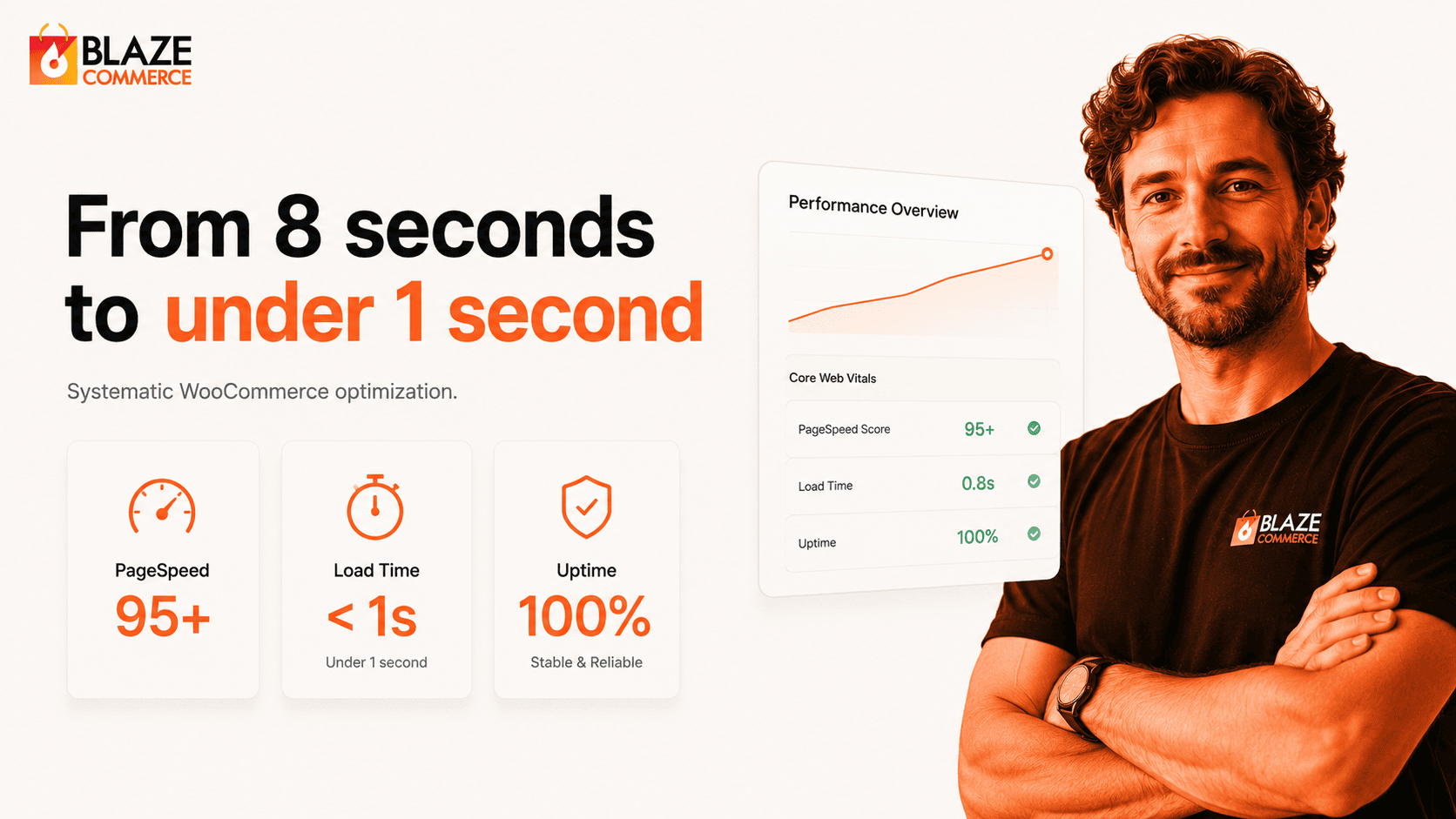
You’ve made changes. How do you know they worked?
Metrics That Matter
1. PageSpeed Insights scores
Test the same pages you tested before optimization. Compare mobile scores – that’s what matters most.
2. Core Web Vitals in Search Console
Google Search Console shows real-user Core Web Vitals data aggregated over 28 days. This is more reliable than lab tests because it reflects actual user experience across different devices and connections.
3. Time to First Byte (TTFB)
Measure server response time before and after. This isolates hosting and database improvements from frontend optimizations.
4. Conversion rate
The whole point of performance optimization is more sales. Track conversion rate by device type (mobile vs. desktop) before and after.
Gourmet Basket saw load times drop from 5.2 seconds to 0.6 seconds. Their conversion rate increased 30%. That’s the correlation you’re looking for.
Maintaining Performance Over Time
Performance isn’t a one-time job. Without ongoing maintenance, your store will slow down again.
Monthly:
- Review PageSpeed scores for key pages
- Check for plugin updates (and test before applying)
- Review database size and clean up if needed
Quarterly:
- Full plugin audit – remove anything you’re not using
- Review Core Web Vitals trends in Search Console
- Test site under simulated load (especially before peak season)
Before peak season:
- Full performance audit
- Load testing to ensure hosting can handle traffic spikes
- Cache warm-up for popular products
When DIY Optimization Isn’t Enough
Everything in this guide can be implemented by a technically competent store owner. But there are situations where professional help makes more sense.
You need expert help when:
- Scores won’t improve despite optimizations. If you’ve followed this guide and still see poor performance, there’s likely a complex issue requiring deep technical diagnosis.
- Performance is actively costing you revenue. If slow pages are causing measurable cart abandonment or lost sales, the cost of professional optimization is easily justified by recovered revenue.
- You don’t have time. Proper WooCommerce optimization takes 20-40 hours of technical work. If your time is better spent running your business, outsource the technical work.
- Peak season is approaching. If Black Friday is six weeks away and your site can’t handle current traffic, you need guaranteed results on a deadline.
- Previous developers left problems. Plugin conflicts, broken customizations, database corruption – untangling someone else’s technical debt requires expertise.
Our $995 WooCommerce Revenue Audit covers performance alongside the UX, analytics, and build factors that affect conversion. It identifies exactly what’s slowing your store, quantifies what each issue is costing you, and gives you a prioritised plan to resolve it systematically.
We’ve transformed stores like Squadron Nostalgia (87% faster, 14.5% more profitable) and LiteracyWorks (near-perfect performance scores through WooCommerce optimization).
Start your WooCommerce Revenue Audit →
Frequently Asked Questions
Why is my WooCommerce store so slow?
WooCommerce stores are typically slow due to four main factors: database inefficiency from accumulated transients, revisions, and bloated log tables; plugin conflicts and overhead from too many active plugins (most stores run 50+); theme bloat from page builders and feature-heavy themes; and inadequate hosting that can’t handle WooCommerce’s resource demands. The average WooCommerce store we analyze loads in 8.6 seconds – far above the 2-second threshold where conversion rates drop significantly.
What is a good page load time for WooCommerce?
Target under 2 seconds, ideally under 1 second. Research shows sites loading in 1 second convert 3x better than sites loading in 5 seconds. For WooCommerce specifically, we reach half-second page loads (460-560ms) for optimized stores. Google’s Core Web Vitals benchmark for Largest Contentful Paint (LCP) is under 2.5 seconds for “good” and under 1.2 seconds for ideal performance.
Will speed optimization break my WooCommerce store?
It can if done incorrectly. Caching plugins configured wrong break checkouts. Aggressive database cleanup can delete data you need. Plugin removal can break features you depend on. This is why we recommend testing changes on a staging site first and following a systematic approach rather than making random changes. The methodology in this guide prioritizes safety – start with diagnosis, then make targeted changes, then verify results. Done right, optimization makes your store faster without touching how you run it.
How much does WooCommerce performance optimization cost?
DIY optimization using the tools in this guide costs $0-200 (free plugins plus potentially one premium tool like Perfmatters). Professional optimization typically ranges from $2,000-10,000+ depending on store complexity and scope. The ROI calculation matters more than the cost – if slow performance is costing you $10,000/month in lost conversions, professional optimization pays for itself in recovered revenue within weeks. The $995 WooCommerce Revenue Audit quantifies exactly what you’re losing before any work begins.
How long does it take to speed up a WooCommerce store?
DIY optimization following this guide takes 10-20 hours of focused work spread over 1-2 weeks. Professional optimization typically takes 4-8 weeks for a complete implementation including UX improvements. Quick wins (database optimization, plugin removal, caching configuration) can show results within days. Larger changes (theme switch, hosting migration) require more planning and testing.
Does hosting really make that much difference for WooCommerce?
Yes. We’ve seen hosting changes alone improve TTFB from 2+ seconds to under 300ms. But hosting can’t resolve plugin bloat or database issues – it only determines the ceiling of what’s possible. A well-optimized site on poor hosting will be slow. A poorly optimized site on great hosting will also be slow. You need both.
Should I switch to headless WooCommerce for better performance?
For most stores, no. We reach half-second page loads (460-560ms) with WooCommerce optimization – no headless build required. The honest line sits around $3M in annual revenue: above that, with checkout buckling under load, a headless build still earns its keep. Below it, optimization usually gets you the same half-second result for about a third of the cost. Headless adds complexity, higher development cost, and ongoing maintenance, so it makes sense for high-volume stores, complex omnichannel requirements, or custom frontend experiences. For everyone else, optimization on your current stack delivers the same speed without the downsides. Learn more about when headless makes sense →
Summary
WooCommerce performance problems are predictable and solvable:
- Diagnose first. Use PageSpeed Insights and Code Profiler to identify your specific bottlenecks.
- Optimize your database. Add performance indexes, clean up the options table, purge bloated log tables.
- Audit your plugins. Remove what you don’t need. Replace heavy plugins with lighter alternatives.
- Evaluate your theme. Page builders kill performance. FSE themes are 40% faster.
- Resolve your hosting if needed. Server-level issues require hosting solutions, not frontend optimizations.
- Prioritize mobile. That’s where your traffic is and where most stores underperform.
- Maintain ongoing. Performance degrades over time without active maintenance.
The stores we optimize typically go from 8+ second load times to under 1 second. Mobile PageSpeed scores jump from the 30s to 90+. Conversion rates increase 20-40%.
That transformation is available to any WooCommerce store willing to address these issues systematically.
Related Resources
- FSE WordPress Themes: 40% Faster Than Traditional Themes
- Austin Natural Mattress: Mobile PageSpeed 28 to 97, AOV +88%
- Solving High Volumes of Failed WooCommerce Orders
- Revamping Checkout Usability: Boost Your Conversion Rates
- Top 32 WooCommerce Plugins We Recommend
Last updated: November 2025. We update this guide quarterly to reflect changes in WooCommerce, WordPress, and performance best practices.
Get my Revenue Recovery Audit
We score your store against the same 245-point Baymard standard we run on every audit, benchmark your mobile PageSpeed, and send the findings within 7 days – each gap ranked by revenue impact.
Get My Revenue Audit →Every gap is tied to a dollar figure and a priority.
Talk directly with Campbell
Founder · 11 years WooCommerce
Schedule a strategy call
30 minutes with Campbell on your UX and performance challenges with WooCommerce – especially if you’re in a restricted vertical where paid ads aren’t an option.
Schedule My Strategy Call →30 minutes. No pitch – an honest assessment of where you stand.